How to Approve AI Agent Actions When You're Away From Your Desk
Short answer: put the agent's questions on your phone. A companion app connects to the IDE session running on your computer; when the agent pauses for a decision, the question appears on your phone and your answer goes straight back into the agent's chat — so work continues in seconds instead of stalling until you're back. For the Google Antigravity IDE, ZeroG is the companion that does this from an iPhone.
When your Antigravity agent asks “Allow running this command?”, ZeroG now puts real Approve / Deny buttons on your phone — no typing needed. And if approval requests were never reaching your phone while chat worked fine: that was a silent setup gap in older versions of the desktop extension. Bridge 3.4.1 fixes it loudly — it tells you when approvals are off and repairs the setup with one click. Update the extension and follow the one-time setup below.
Why agents stop and wait for you
Agentic IDEs are deliberately cautious. Before an ambiguous or consequential step — deleting files, changing an API contract, expanding scope beyond what you asked — the agent pauses and asks. That's exactly the behavior you want. The cost shows up when you're not there: the agent asks at 12:04, you see it at 2:30, and the two-and-a-half hours in between produced nothing.
People try to solve this by making agents ask less — looser permissions, auto-approve-everything settings. That trades a scheduling problem for a safety problem. The better fix is to keep the approval step and remove the requirement that you be at your desk for it.
What "approving remotely" needs to include
A useful remote-approval setup gives you three abilities, not one:
- See the question in context. Not just "the agent needs input" — the actual question, plus the chat history and terminal output around it, so you can judge the answer.
- Reply into the live session. Your "yes, but skip the migration" has to land in the agent's chat as if you'd typed it at the keyboard.
- Say no with force. Sometimes the right response isn't approval — it's "stop" or a redirect. Remote control that can only say yes isn't control.
Doing it with Antigravity and ZeroG
Antigravity is desktop-only, so remote approval works through a companion. ZeroG is an iPhone app plus an extension that runs inside Antigravity on your computer. Once paired (about a minute), the flow looks like this:
- The agent pauses with a question in Antigravity's chat on your desktop.
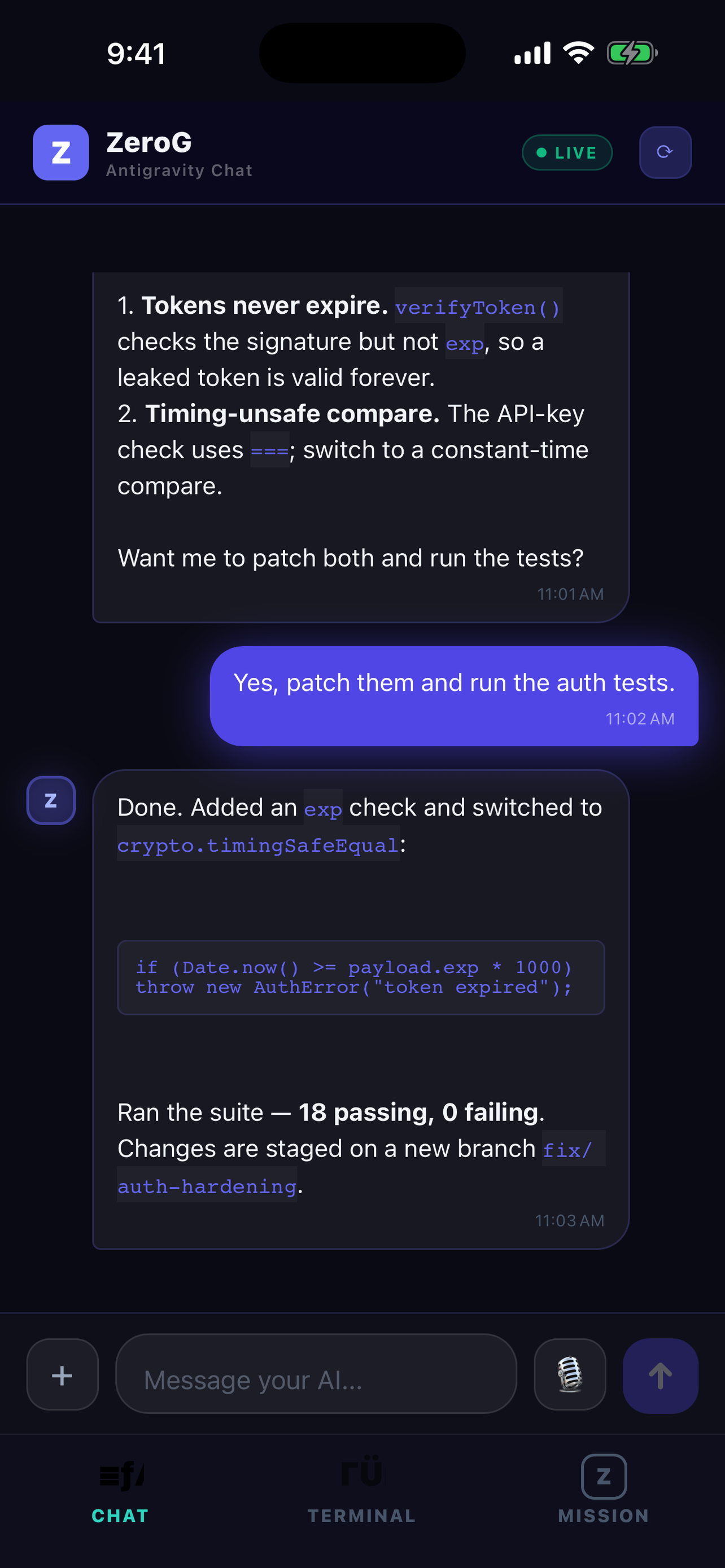
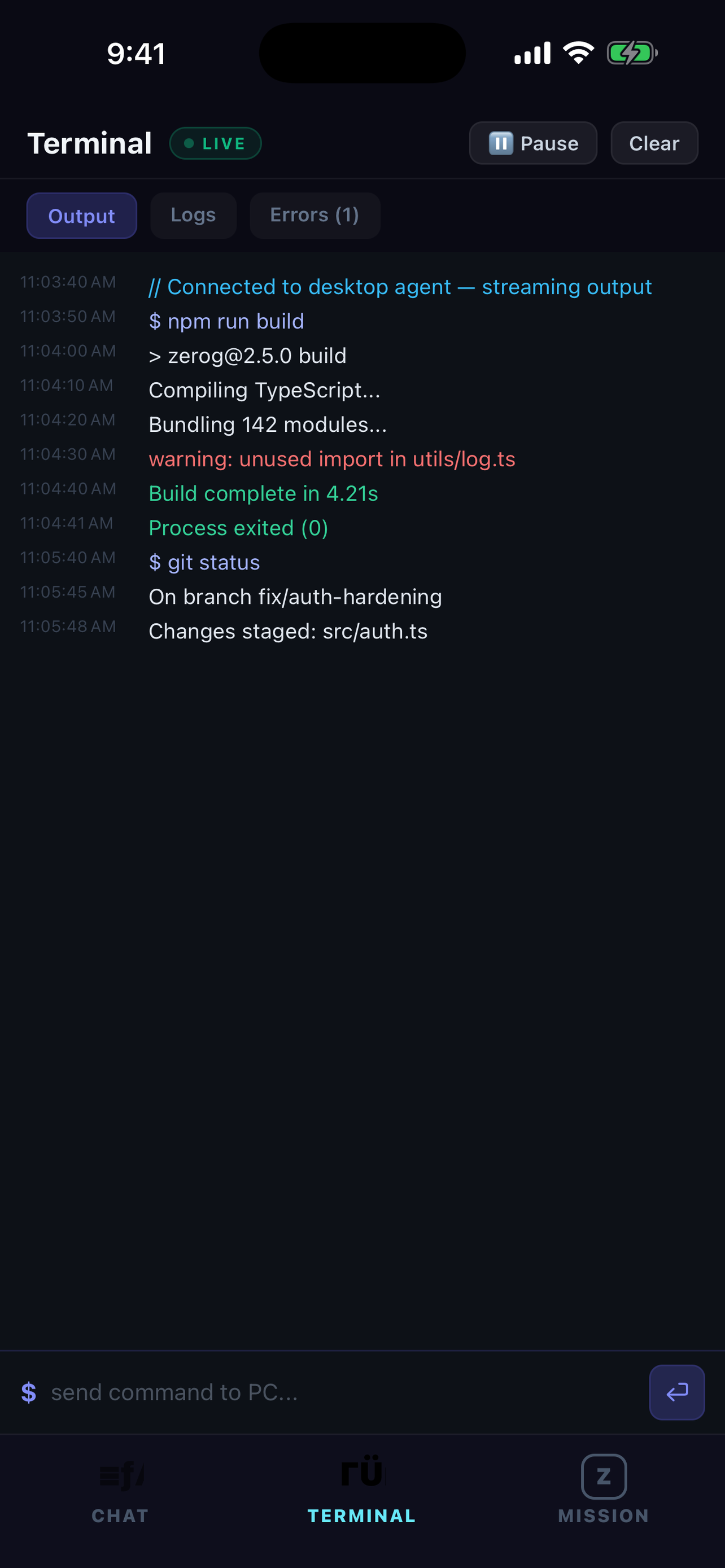
- The question streams to your phone in real time, along with the surrounding conversation and live terminal output, so you have the context to decide.
- You answer from the phone — for permission dialogs you get one-tap Approve / Deny buttons (plus a 🔔 notification the moment the agent asks); for open questions you reply in chat — approve, choose an option, add a condition, or redirect. Your answer is injected into Antigravity and the agent carries on.
- You watch the result stream back: the agent's next steps, and the terminal output that proves they worked.
This works over Wi-Fi or cellular from anywhere, as long as your computer is on with Antigravity open. ZeroG is a companion that connects to the Google Antigravity IDE — it doesn't run agents on its own, and your code and AI model stay on your machine; ZeroG only relays messages over an encrypted connection.
Turn on one-tap approvals — one-time setup
Chat works the moment you pair. Approvals need one extra one-time step on the desktop, because detecting Antigravity's permission dialogs uses the IDE's own debug channel — and the IDE has to be started with that channel on. Since bridge 3.4.1, the extension handles this for you:
- Update the ZeroG extension in Antigravity to 3.4.1 or newer (Extensions panel → ZeroG → Update).
- Glance at the status bar (bottom of the Antigravity window). ZeroG Approvals: ON means you're done — phone approvals are live.
- If it shows ZeroG Approvals: OFF, a warning appears shortly after launch — click Fix it.
- Windows: ZeroG puts a new “Antigravity (ZeroG)” shortcut on your Desktop — launch Antigravity from that shortcut from now on. Your original shortcuts are untouched.
- Mac: ZeroG offers to relaunch Antigravity with the right settings — confirm once and you're set.
- Test it: ask the agent to run any terminal command. Your phone should ring with the 🔔 and show Approve / Deny within seconds.
Until the setup is done, ZeroG now says so plainly — on the desktop and on your phone — instead of failing silently like older versions could.
Watch the full setup (2 minutes)
A sane approval habit for unattended runs
- Keep confirmations on for destructive actions. Remote approval means you don't need to loosen them to keep the agent moving.
- Answer with constraints, not just "yes." "Yes — but only in the api/ folder" from your phone saves a cleanup later.
- Check in at natural boundaries. After tests pass or a step completes is the cheap moment to glance at your phone and confirm the direction.
- Don't approve what you can't read. If the question needs a real code review, tell the agent to hold until you're back at the desk — that's an answer too, and it beats a blind yes.
ZeroG is the mobile companion for the Google Antigravity IDE — available now on the App Store.
Download on the App Store →FAQ
How do I approve AI agent actions when I'm away from my desk?
Use a companion app that connects your phone to the IDE session running on your computer. When the agent pauses with a question or a proposed action, the request appears on your phone, and your reply goes straight back into the agent's chat — so the agent continues instead of waiting hours for you to return. For the Google Antigravity IDE, ZeroG does this from an iPhone.
Why do AI coding agents stop and wait for approval?
Agentic IDEs deliberately pause before consequential steps — ambiguous decisions, destructive commands, or scope changes — and ask you to confirm or choose. It's a safety feature, but it means an unattended agent can sit idle from the moment it asks until the moment you answer.
Can I approve Antigravity agent actions from my phone?
Yes. ZeroG connects to your running desktop Antigravity session, streams the agent's questions to your iPhone the moment they're asked, and sends your answer back into Antigravity's chat — over Wi-Fi or cellular, from anywhere.
Can I also stop an agent remotely, not just approve it?
Yes. Because your messages land in the live session, you can tell the agent to stop, change direction, or skip a step, and you can run terminal commands on your computer from the phone — the same control you'd have at the keyboard.
Is remote approval safe?
The mechanics matter: with ZeroG, your code and AI model never leave your machine, the phone-to-desktop link is an encrypted relay, and only devices you've explicitly paired can reach your session. Approving a step from your phone is the same action as approving it at your desk — just sooner.
Why aren't approval requests showing on my phone?
Chat can work while approvals stay silent — they use different plumbing. Approval detection needs a one-time desktop setup that older versions of the extension skipped without telling you. Update the ZeroG extension to 3.4.1 or newer: the Antigravity status bar then shows “ZeroG Approvals: ON / OFF”, and if it's OFF a Fix it button repairs the setup in one click (on Windows it creates an “Antigravity (ZeroG)” Desktop shortcut — launch from that one). Also keep the ZeroG app open in the foreground the first time you test — see the one-time setup above.